When files go missing: a practical guide to recovering what matters

Losing an important file feels personal — an invisible thread snaps and suddenly memories, hours of work, or critical records are gone. This guide walks through what causes those breaks, the sensible steps to take immediately, and how to choose the right tools or professionals to get your information back. Read on and you’ll learn practical techniques and prevention habits that actually work in the messy, real world.

What happens when storage stops behaving

At a basic level, storage devices keep a map of where bits of your files live. When that map is damaged, overwritten, or hidden by hardware issues, the operating system can no longer find the information you expect to see. Understanding whether the problem is with the map, the media, or both is the first step toward recovery.

There are two broad categories of loss. Logical failures occur when files or metadata are corrupted, deleted, or made inaccessible by software. Physical failures involve mechanical or electronic damage to the device itself, and those usually require specialized handling to avoid making things worse.

Common causes of data loss

Human error sits near the top: accidental deletions, formatting the wrong drive, or overwriting a file. Those mistakes can often be fixed if you act deliberately and avoid writing new data to the affected device. Pauses, careful thinking, and the right tool at the right time matter more than panicked clicks.

Hardware failure is another major cause. Hard drives have moving parts that wear out; flash memory wears with repeated writes and can fail without warning. Sudden power loss, overheating, and manufacturing defects all contribute to unexpected device deaths. Wear patterns and failure modes differ across media, so the recovery approach changes accordingly.

Malware and software bugs also steal time and data. Ransomware, in particular, encrypts files and makes them unreadable without a decryption key. While law enforcement and vendors evolve responses, prevention and isolation remain the best defenses. In some cases, backups will be your only reliable remedy.

Physical damage versus logical corruption

Physical damage means the device’s components — platters, read heads, or controller boards — are compromised. In hard drives this often produces clicking sounds, failure to spin, or intermittent recognition by the host computer. Attempting to power a physically failing drive repeatedly can worsen internal damage and reduce the chance of recovery.

Logical corruption refers to software-level problems: corrupted file systems, accidental formatting, or deleted file entries. These scenarios tend to be more forgiving. With the right cloning and scanning techniques, many logically lost files can be restored without opening the device.

Immediate steps to take after you notice data loss

Stop writing to the device as soon as you realize something’s wrong. Continued use increases the chance that the filesystem tables or the actual file content will be overwritten, which can make recovery impossible. Even normal operating system activity can create background writes, so ejecting or unplugging the device is a simple, critical action.

Document what happened and the actions you took. Note the model of the device, recent events (drops, power outages, error messages), and where the files were located. This contextual information helps when working with support technicians or deciding which recovery method to try yourself.

If the device is making unusual noises or fails to spin, power it down and don’t attempt DIY fixes that involve opening the enclosure. For logical errors — deleted files, accidental formatting, or corrupted partitions — stop using the system and consider making a sector-by-sector clone before attempting any reconstruction.

How to make a forensic clone (and why it matters)

Cloning creates a snapshot of the device at the sector level, preserving the current state for safe experimentation. If you have a failing or fragile drive, operating on a clone prevents further damage to the original and lets you try multiple recovery tools without risk. Think of cloning as insurance for your data.

Use dedicated software capable of handling read errors and skipping bad sectors while logging progress. Many tools allow for controlled timeout and retry behavior to avoid spinning down a drive or causing thermal stress. For drives that are physically noisy or flaky, professional services will often create a cloned image in a clean lab environment.

DIY recovery techniques by media

Different media types behave differently and require tailored approaches. Below are practical, device-specific techniques that work for most non-physical failures. Each subsection covers the common failure modes and pragmatic steps you can try before involving paid services.

Hard disk drives (HDDs)

For mechanically healthy drives with logical problems, start by creating a sector copy to another, equal-or-larger drive. Use software that can handle bad sectors gracefully and provide a verification report. Once you have an image, run file-system repair and recovery tools against the image rather than the original drive.

If the drive is clicking, failing to spin up, or producing strange noises, do not power it repeatedly. Those are signs of mechanical failure; further DIY attempts can damage the platters or heads. In such cases the safest option is to ship the device to a certified lab with a clean room and controlled equipment.

Solid-state drives (SSDs)

Solid-state storage introduces different challenges: wear leveling and controller-level remapping mean data is not stored in predictable locations, and some SSDs respond poorly to low-level forensic access. Trim and garbage collection can also erase data invisibly after deletion, making some files unrecoverable if the SSD has been used heavily since loss.

For logical corruption on SSDs, immediate cloning is still useful but may not capture deleted blocks if Trim has run. Specialized SSD-aware tools sometimes recover filesystem metadata or recently deleted files, but success depends on the controller and settings. When in doubt, stop using the drive and consult a specialist if the data is valuable.

USB flash drives and SD cards

Removable flash media is fragile and can suffer from electrical issues, file system corruption, and accidental formatting. If a card gets corrupted, card readers are often the first variable; try reading the media with a different, reliable reader and a different host operating system to rule out peripheral issues.

Recovery tools that scan for file signatures (photo, document types) can often pull images and Office files even when the file table is damaged. For physically cracked or water-damaged cards, drying and careful cleaning might help but avoid excessive heat or rubbing the contacts aggressively. If the contents are irreplaceable, a lab can sometimes salvage raw data directly from the memory chip.

Mobile devices (phones and tablets)

Mobile devices combine flash storage with encryption and operating-system-level protections. If you can still boot the device and access the screen, back up immediately using the device’s official tools or trusted third-party apps. Screens that are dead may still allow data extraction through specialized hardware and software, but success depends on the phone model and whether the storage is encrypted with hardware keys.

For iOS devices, backups made to iCloud or a trusted computer are the most accessible recovery route. For Android, use adb and backup utilities if the device still responds; otherwise, professional mobile forensics services can sometimes retrieve data directly from chips or by repairing the logic board enough to extract contents.

Tools and software worth knowing about

There’s a broad ecosystem of recovery software, ranging from free utilities to enterprise-grade suites. Choose tools that support creating images, have robust logging, and offer preview capability so you can check recovered files before restoring them. Always operate on a copy when testing recovery software.

Below is a concise table summarizing common tools and their typical use cases. This is not an exhaustive endorsement but a starting point for practical selection based on platform and need.

Tool Platforms Typical use Cost
TestDisk/PhotoRec Windows, macOS, Linux Partition recovery and file carving for many file types Free
Recuva Windows Simple deleted file recovery on NTFS/FAT Free / Paid Pro
R-Studio Windows, macOS, Linux Advanced recovery, RAID reconstruction Paid
ddrescue Linux (available on others) Sector-by-sector cloning with error handling Free
EaseUS / Stellar Windows, macOS User-friendly recovery for home users Paid

How to choose the right recovery tool

Pick a tool that matches the problem: partition damage, individual deleted files, RAID failure, or physical errors. If the user interface encourages you to write to the affected drive as part of the scan, don’t proceed — find a tool or mode that allows for read-only imaging first. Read reviews and test on non-critical samples to gain confidence.

Also consider file type support. Photo and document recovery often succeed with signature-based carving, but databases and proprietary formats may require filesystem metadata to be intact. When dealing with complex file systems or encrypted volumes, lean toward professional solutions or software known to handle those specific technologies.

When to stop and call a professional

If the device shows mechanical trouble — clicking, grinding, failure to spin, or smoke — power it down and consult a lab. Similarly, if the data loss involves a RAID array, complex encryption, or mission-critical corporate data, the risk of worsening the situation by guessing is high. Professional labs have tools and protocols to minimize unintended damage.

Another strong signal is time sensitivity. If missing data affects legal obligations, taxes, or deadlines, pay for professional response rather than burning hours on DIY attempts. Successful recovery often hinges on a calm, methodical process; a rushed, amateur approach can reduce success rates and raise costs later.

What a professional lab does

Labs start by documenting the device state and creating a sector-by-sector image using specialized hardware. If the drive is physically damaged, technicians may replace controller boards, realign heads, or extract platters into a clean room for safe cloning. For logical issues, they use forensics-grade software to rebuild file systems, reconstruct directory trees, and repair corrupted metadata.

Expect a stepwise workflow: diagnosis, imaging, analysis, and recovery. A reputable provider will give a detailed report, sample previews of recovered files, and a clear pricing structure. Turnaround time depends on damage severity and lab workload, so budget both time and money appropriately when choosing this route.

Scenario Typical cost range Estimated success rate
Logical deletion / formatted drive $0–$300 (DIY to paid software) High (70–95%)
Non-mechanical drive errors (controller issues) $300–$800 Moderate to high (50–85%)
Mechanical failure requiring clean-room work $800–$2,500+ Variable (30–90%) depending on damage
Advanced RAID or encrypted device $1,000–$5,000+ Variable (20–90%)

How professionals evaluate success

Labs report recovery success in terms of data readability and completeness. Recovering a handful of critical documents might be a success for a small firm, even if large media files are unrecoverable. Conversely, recovering partial fragments of video files might be useless to a creative production team. Clarify priorities before engaging a service.

Be wary of guarantees that promise 100% recovery. No reputable lab can promise full restoration without inspecting the device first. Good providers will be transparent about risks, provide sample file lists, and explain factors that influence outcomes like prior attempts or physical contamination.

Preventive measures that actually reduce future loss

Prevention is far cheaper and more reliable than recovery. The core defense is a consistent backup strategy that accounts for local and offsite copies, versioning, and periodic testing. Time spent designing a backup plan saves more hours than any later recovery effort.

The 3-2-1 rule is a helpful baseline: keep three copies of important data, on two different media, with one copy stored offsite. That simplicity captures redundancy and geographic separation without bogging you down in technicalities.

  1. Primary copy: your working device.
  2. Local backup: external drive or local server for fast recovery.
  3. Offsite backup: cloud storage or remote physical backup for disaster resilience.

Backup practices and verification

Automate backups and schedule periodic integrity checks. Automated jobs reduce reliance on memory and human discipline, while verification detects corrupt backups before disaster strikes. Use incremental backups with occasional full snapshots to balance speed and recoverability.

For sensitive or regulated data, apply encryption at rest and in transit, and keep your encryption keys backed up separately. Maintain versioning for critical files so you can roll back to prior states in case of accidental changes or malware encryption.

Testing your recovery process

Run scheduled restore drills to confirm you can recover from backups within acceptable timeframes. A backup that can’t be restored is only a placebo; practice restores expose configuration errors, missing files, and permission issues long before they matter. Treat recovery testing as a maintenance task rather than an emergency-only activity.

Document your recovery steps clearly and keep the documentation near your backup systems. In stressful situations, clear instructions and a named contact who knows the system reduce mistakes and speed restoration.

Security and privacy during recovery

Handle recovered data with the same security expectations as the original. When sending drives to a lab, verify their privacy policies and chain-of-custody procedures. For sensitive records, require non-disclosure agreements and ask about secure disposal of media after recovery is complete.

Be cautious about free or shady online services that offer quick fixes for uploaded drives or images. Uploading sensitive files to unverified services risks data leakage; prefer reputable vendors or perform recovery on air-gapped equipment under your control.

Real-life examples and lessons learned

A few years ago I faced a dead external drive holding a toddler’s first-year photos. The drive spun up intermittently and emitted soft clicking noises. After creating a careful clone with controlled timeouts, a recovery utility reconstructed most JPEGs, though a handful were partially corrupted. The key takeaway was the value of an immediate clone and using a tool that tolerates read errors.

In another case, a small business accidentally formatted a server volume. They had backups, but the automated schedule had silently failed months earlier due to a permissions change. Restoring from an offsite copy recovered most files, but the incident cost several days of downtime and taught them to add monitoring and restore testing to their backup policy.

Practical checklist to follow right now

When disaster strikes, a short checklist keeps you focused and reduces risk. First, stop using the affected device and document the circumstances. Second, create a sector clone if possible or capture a full backup. Third, try non-destructive recovery tools to preview recoverable files. Lastly, evaluate whether the cost and risk of professional help are justified.

Keep this checklist near your workstations or in a team playbook so it’s available when stress levels run high. Clear roles and a simple process reduce errors and increase the chance of a successful outcome.

Choosing the right professional service

When selecting a lab, look for certifications, written procedures, transparent pricing, and the ability to preview recovered data before payment. Read reviews but also ask for direct references, especially if the data is sensitive or tied to business continuity. A trustworthy vendor will be upfront about realistic outcomes and escalation options.

Check whether they offer a no-recovery, no-fee policy and what fine print applies. Some labs waive fees only if specific conditions are met; others charge for diagnostics. Understand the contract before shipping hardware and ask about shipping insurance and secure packaging recommendations.

Costs, timelines, and realistic expectations

Plan for a range of outcomes. Simple logical recoveries can be quick and inexpensive; physical recoveries may take days to weeks and cost substantially more. If time is critical, inquire about expedited services and the associated premium. Discuss priorities so the lab can focus on the highest-value data first.

A good approach is to budget for incremental spending: start with diagnosis and imaging, then decide whether to proceed with deeper recovery based on the lab’s initial findings and sample previews. This staged process helps manage risk and spending while keeping options open.

Final thoughts on preventing future headaches

Files will vanish again if you don’t treat storage as part of a system that includes redundancy, monitoring, and human processes. Adopt a layered approach: keep reliable backups, test restores, protect systems from malware, and prepare a short incident playbook that anyone on your team can follow. Small habits compound into real resilience.

When loss occurs, calm, deliberate actions often recover more than frantic attempts. Preserve the device state, collect relevant details, and choose the appropriate tool or professional help based on the failure type and value of the data. With a thoughtful plan, most losses are avoidable or recoverable, and the next time a file vanishes you’ll know exactly what to do.

apple repair. Finding reputable resources and guides

When your iPhone sighs: a practical guide to apple repair that actually helps

Modern Apple devices are remarkable little machines until they aren’t—then they feel fragile, expensive, and confusing to fix. This article is for anyone who has stared at a cracked screen, an iPhone that refuses to charge, a MacBook that runs hot, or the dread of losing photos when the device won’t boot. I’ll walk you through why problems happen, what you can safely try yourself, when to call a pro, and how to make smarter choices about cost, privacy, and sustainability.

Why Apple devices break and what that means for repair

Apple designs tend to prioritize thinness, seamless materials, and tightly integrated components. That approach gives you a sleek phone or laptop, but it also means parts are packed closely together and repairs can be delicate. A drop that fractures glass may have also jarred internal connectors; liquid exposure can corrode tiny contacts that aren’t immediately obvious; and battery wear is a natural byproduct of chemistry, not poor craftsmanship.

Understanding that many failures are either mechanical (physical damage, wear) or electrical (battery, connectors, logic board) helps you decide the next step. Software hiccups can masquerade as hardware faults, and vice versa, so initial diagnostics matter. With a few careful checks you can narrow down the likely cause without running up a bill.

Initial diagnosis: quick checks you can do at home

Before you hand any device to a repair shop, run a short checklist: reboot the device, try a different cable or charger, test with another outlet, and inspect ports for debris. These simple steps catch a lot of charger and port issues and can save a trip to the repair counter. For macOS and iOS devices, performing a safe-mode boot or a factory reset (after backing up) often reveals whether the problem is software-related.

For liquid exposure, power the device down immediately and avoid charging; letting a phone sit powered while wet increases the risk of short circuits. Screen issues often present visibly—cracks, discoloration, or unresponsive touch—but sometimes a damaged display driver will produce flicker or ghost touches without any obvious external damage. Keep a calm, methodical approach and document symptoms: the time they started, what changed just before, and any error messages you see.

DIY vs professional repair: how to choose

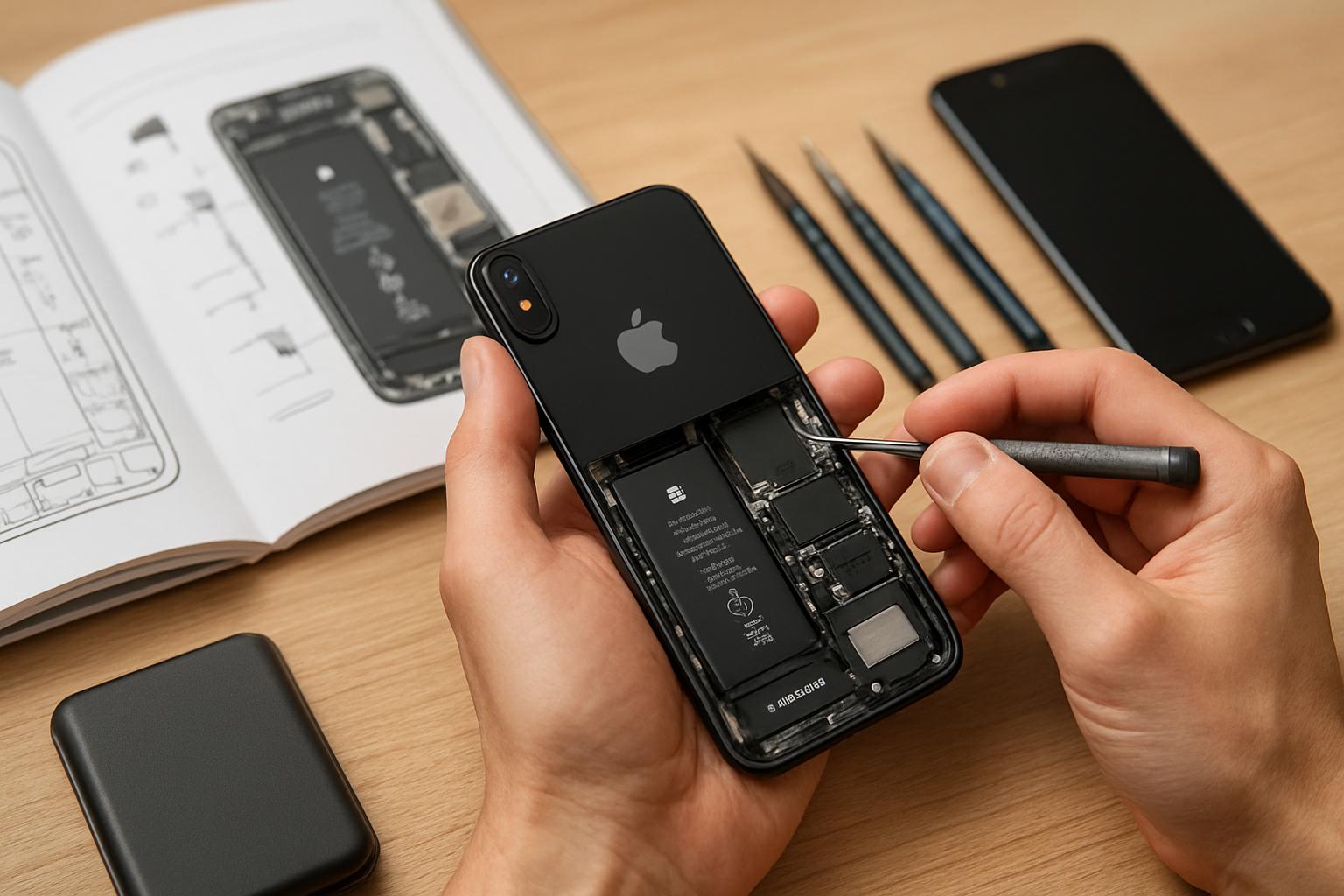
There’s no universally right answer about doing it yourself. Replacing a battery or swapping a broken screen can be rewarding and lower-cost if you have steady hands, the right tools, and reliable parts. But modern Apple devices often require specialized screwdrivers, adhesive removal, and delicate connector handling; one slipped screwdriver can turn a fix into a logic board problem.

Professional repair makes sense when the device is expensive, the failure is complex (logic board, water intrusion, or unknown symptoms), or if warranty and data integrity matter. If you value original parts and manufacturer data security, using an authorized service provider is worth the price. Conversely, if you want to stretch the life of an older device affordably, a trusted independent repair shop or a DIY fix may be the better choice.

Understanding warranties and AppleCare

Apple’s limited warranty covers manufacturing defects for a set period, and AppleCare extends that coverage and often lowers repair costs for specific failures. However, the warranty does not cover accidental damage unless you have AppleCare+ with accidental coverage. That distinction matters: a single drop can convert an otherwise simple repair into an out-of-warranty bill.

Authorized service providers and Apple Stores have access to genuine parts and official diagnostic tools; using an independent shop won’t void warranty in every case, but unauthorized third-party repairs done with non-genuine parts can. Before you open a device or take it to a third party, check your warranty status and weigh the trade-offs between authenticity, price, and convenience.

Parts, tools, and quality: what to look for

Parts vary widely. Genuine OEM parts come from the manufacturer and will preserve original performance and fit, but they cost more and are often only available through official channels. High-quality aftermarket parts can be nearly indistinguishable in daily use, while cheap parts may fog screens, drift touch responsiveness, or fail sooner. When shopping, read detailed reviews and favor vendors with clear return policies and warranties.

The right tools matter as much as the part. A kit that includes the correct screwdrivers, spudgers, suction cups, and opening picks reduces the chance of damage. Adhesives for screens and batteries require heat or solvent to remove properly; trying to force them without the correct technique risks cracking frames. If you plan to repair more than once, invest in a few reputable tools rather than cutting corners with a cheap set.

Common repairs and what to expect

Some fixes are routine: battery replacements, screen replacements, and charging-port repairs top the list for phones and tablets. On Macs, common issues include SSD failures, RAM upgrades in older models, cooling system maintenance, and keyboard or trackpad replacement. Each has a characteristic symptom set and a typical cost range depending on parts and labor.

Below is a simple table that gives approximate retail costs for common repairs to help you plan. Prices vary by model, location, and whether you use OEM parts or aftermarket components, so treat these numbers as directional rather than definitive.

Repair Typical cost range (US) Notes
Smartphone screen replacement (modern iPhone) $100–$350 Depends on model and OEM vs aftermarket
Battery replacement (phone) $50–$100 Apple authorized shops price higher than independent
Charging port repair $60–$150 Often involves port replacement or board-level work
MacBook battery replacement $129–$249 Older models may be cheaper; glued-in batteries increase labor
SSD replacement/upgrades (Mac) $100–$600+ Cost depends on capacity and model compatibility

Preparing your device before any repair

Back up everything. Use iCloud, Time Machine, or a full device backup to an external drive so you can restore your data if the repair requires wiping or if the device fails completely. Backups are not optional; they are the key step that turns a stressful repair into a manageable interruption.

Sign out of accounts when possible, disable activation locks, and remove any case or screen protector so technicians can work quickly. If privacy concerns you, ask the repair shop about their data-handling procedures and whether they can work while you wait or in your presence. Retail shops and authorized centers usually have established intake procedures; independent shops vary more in how they protect your information.

Screen replacements: what really happens under the glass

Replacing a screen is more than swapping glass. Modern displays integrate touch sensors, digitizers, OLED or LCD panels, and often contain the front camera, Face ID sensors, and proximity hardware. On newer iPhones, separating the display from the frame requires dissolving adhesive and gently lifting connectors, with particular care for the fragile flex cables that route touch and sensor data.

Quality varies: an OEM display will match brightness, color accuracy, and haptic feedback from the original. High-quality third-party screens can approach that performance but may need recalibration for True Tone or Face ID features. If your device uses biometric security tied to the display assembly, an authorized repair is usually required to preserve those functions.

Battery replacement: lifecycles and safe swaps

Batteries age predictably. Lithium-ion cells degrade over time and with charge cycles, and once capacity falls below a usable threshold, the device’s performance will suffer—shorter screen-on time, unexpected shutdowns, or thermal spikes. Replacing a battery restores runtime and can improve performance, especially on older devices throttled to prevent shutdowns.

Battery replacement is commonly doable by skilled DIYers, but it requires precautions. Swollen batteries point to internal failure and must be removed carefully to avoid puncture. Disposal is important: batteries are hazardous waste and should be recycled through proper channels. A reputable shop will handle disposal responsibly if you choose professional service.

Water and liquid damage: triage and recovery

Liquid exposure is a race against corrosion. The moment your device gets wet, power it down and resist the urge to plug it in or charge it. Removing the battery or disconnecting power, if possible, reduces the chance of electrical shorts. The sooner you have a technician evaluate it, the better your odds of salvaging data and avoiding permanent board damage.

Repair shops often perform ultrasonic cleaning, corrosion removal, and connector replacement to remedy liquid damage, but results vary. Some devices recover fully; others suffer latent failures that appear weeks later. If the device holds irreplaceable data and you cannot back it up, inform the technician right away so they prioritize data preservation during initial triage.

Logic board and component-level repairs

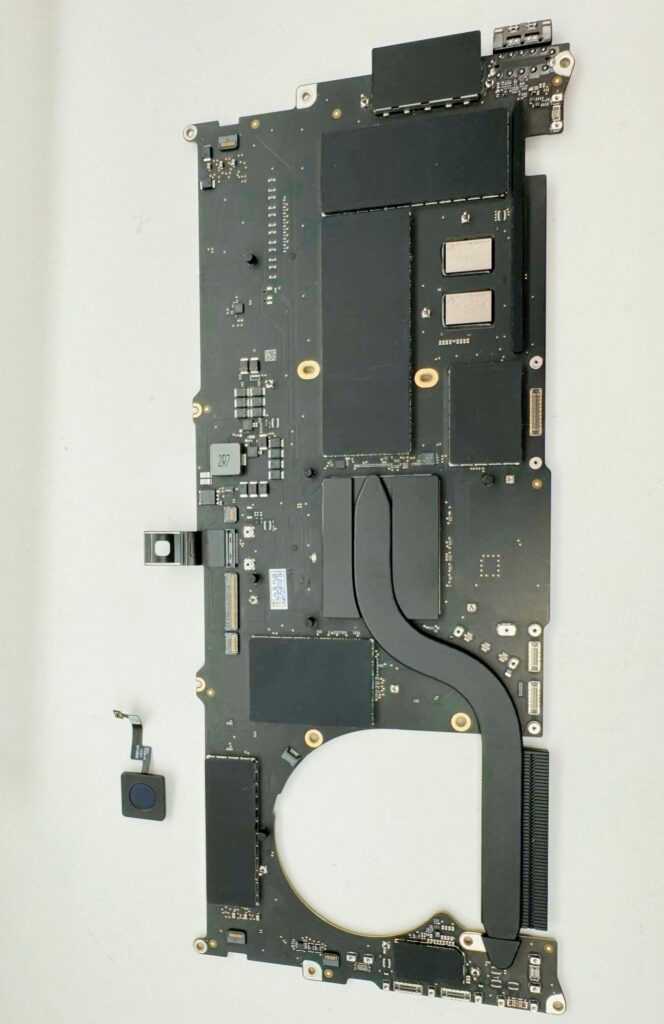
Logic board repairs involve diagnosing and replacing tiny components like capacitors, resistors, and chips. This level of work requires specialized diagnostic equipment, a microscope, and skills in surface-mount soldering. Repairs at this level can be cost-effective for otherwise expensive devices, but they are delicate and sometimes unpredictable—success depends on the extent of damage and availability of replacement components.

Because logic board work often requires proprietary schematics or deep experience, not every shop will attempt it. If you have a high-value device or sentimental data tied to it, seek a specialist with demonstrated experience and a warranty for their work. Ask for a clear estimate of success rates and a plan for data recovery if repair attempts fail.

Software troubleshooting and system recovery

Not every problem is hardware. Stubborn apps, corrupted updates, and malware-like behaviors can make a phone or Mac appear broken. Running diagnostics, checking storage, reinstalling the OS, and resetting settings are standard first steps. These actions often resolve sluggish performance and boot loops without any parts replacement.

When performing software repairs yourself, always back up first. If you need to reinstall the OS, use official recovery tools: macOS Recovery, DFU mode for iPhones, and Apple Configurator for more advanced scenarios. If you feel uncertain, let a technician perform system restores while you watch so you can keep control of your account credentials.

Data security and privacy during repairs

Your device contains personal data, passwords, and possibly financial information. Protecting that data during repair should be a top concern. Before handing over a device, log out of accounts and, where possible, wipe the device after backing up. If you must leave a device powered on for diagnosis, ask the shop to limit access to diagnostics only and request a signed service agreement that covers data handling.

Reputable shops will respect privacy, but always confirm their policies. For sensitive work—legal documents, proprietary code, or private photos—you may prefer an in-person repair where you can be present. For remote repair or mail-in services, read reviews and examine service terms carefully to understand how your data will be protected and how long parts will be held before return.

Choosing a repair shop: questions to ask and red flags

When selecting a shop, ask how long they have been in business, whether they use OEM parts, what warranties they offer, and whether they provide a written estimate. A shop that explains diagnostics clearly, lists potential failure points, and gives realistic timelines is worth considering. Also ask about parts sourcing: are parts new, refurbished, or third-party, and can they document origin?

Watch for red flags: evasiveness about costs, pressure to accept a diagnosis without explanation, unwillingness to allow you to watch the repair, or a lack of written warranty. A transparent shop will show you what they will replace, how long it will take, and what to expect if something else is discovered. Trust your instincts: if something feels off, get a second opinion.

Mail-in repair services: pros and cons

Mail-in services are convenient, often cheaper, and helpful if you don’t have a local technician. They usually provide prepaid shipping labels and a timeframe for turnaround. However, you’re sending a valuable device through transit, and postal mishaps can happen. Understand the company’s insurance, tracking, and liability policies before shipping.

For urgent repairs or devices containing sensitive data, in-person service may be preferable. If you choose mail-in, prepare the device by backing up and removing personal data as much as possible. Keep copies of serial numbers, IMEI, and service order numbers so you can track progress and verify the returned device.

Cost-saving strategies without sacrificing quality

If budget matters, start with careful diagnostics to avoid replacing parts unnecessarily. A battery test or port cleaning often solves common problems at low cost. Choose trusted independent shops that offer solid warranties rather than bargain providers who cut corners on parts. Ask whether you can supply a part you sourced yourself—some shops will install customer-supplied parts for a lower labor fee, but confirm compatibility and warranty implications first.

Another approach is to prioritize repairs that restore core functionality: a fresh battery and a good screen can extend a phone’s life dramatically at a fraction of the cost of buying new. For Macs, upgrading storage or RAM on older but supported models can be a smart, economical way to get more life out of a machine before replacement becomes the better value.

When replacement is the smarter choice

Sometimes repair cost approaches or exceeds replacement cost, especially for older models or when major components like the logic board fail. Consider the age, overall condition, and software support status of the device. If a phone is several years old and will soon stop receiving updates, investing heavily in a repair may simply postpone an inevitable upgrade.

Also weigh environmental and personal factors. Repairing extends useful life and reduces e-waste, but repeatedly repairing a device that still feels sluggish or unreliable can be more frustrating than helpful. Make a pragmatic choice: fix what gives you reliable value, and replace when the total cost and inconvenience of repairs outweigh the benefits.

Verifying repairs and aftercare

When you pick up a repaired device, test basic functions before leaving the shop: screen responsiveness, charging, camera, microphones, speakers, and any previously problematic features. If possible, run a full backup and a short stress test—play a video, run a web session, and make a call. Shops that allow on-site testing and immediate feedback usually handle issues more quickly.

Keep the receipt and any warranty documentation. Many shops offer a limited warranty on labor and parts—get the terms in writing. If a repaired issue recurs, document it and return promptly; shops are typically willing to address problems covered by their warranty but may resist claims after significant time has passed or if further damage has occurred.

Recycling and responsible disposal of old devices

When a device reaches end-of-life, recycling is the responsible option. Apple and many retailers provide trade-in and recycling programs that ensure devices are processed safely and valuable materials are recovered. Batteries, in particular, should never be thrown in the trash due to fire risk and environmental harm.

Before recycling, wipe the device securely and remove any SIM cards or external storage. If you trade in a device for credit toward a new purchase, compare the trade-in value to private sale prices; sometimes selling privately yields more cash, but trade-in simplifies the process and ensures responsible recycling of non-sellable parts.

Preventive maintenance to reduce repair risk

Small habits reduce risk dramatically: use a case and a screen protector, avoid extreme temperatures, and don’t leave devices plugged in for prolonged periods on hot surfaces. For laptops, keep vents clear and periodically clean fans and heatsinks from dust. Regularly update software to patch bugs that can cause battery drain or instability.

Finally, back up often. A robust backup routine makes hardware failures manageable because your data is safe. For people who rely on their devices for work or creative projects, an automated backup strategy is the single best preventive measure against the worst outcomes of hardware problems.

Finding reputable resources and guides

apple repair. Finding reputable resources and guides

If you want to learn specific repairs, seek high-quality tutorials and community feedback. Websites like iFixit provide detailed guides, parts lists, and difficulty ratings that help you decide whether to attempt a fix. Forums, video walkthroughs, and local maker spaces are also useful, but cross-check any advice with multiple sources before proceeding.

When following online guides, pay attention to model-specific notes: Apple’s designs change year to year, and a method that works on one model might damage another. Keep a clean workspace, good lighting, and a way to organize screws and small parts so reassembly goes smoothly.

Personal example: the time I saved a MacBook from the landfill

Last year my sister brought me a MacBook that had rattling fans and a battery that held almost no charge. The owner had been quoted a replacement price that nearly matched a new machine. I spent an afternoon diagnosing thermal paste buildup, cleaned the fans, replaced the battery with a high-quality unit, and reinstalled macOS. The machine gained several hours of battery life and now runs cooler, extending its usefulness by years.

That experience taught me two things: a careful diagnosis can reveal inexpensive fixes, and a little hands-on work—when done correctly—can save both money and the planet. It also reinforced the value of picking the right parts and following reliable guides rather than rushing into expensive component replacements.

Final practical checklist before any repair

Back up your device and save important passwords in a password manager or written note. Check your warranty and AppleCare status so you understand coverage. Ask the repair shop for a detailed estimate and a written warranty on the work. Finally, test the device thoroughly when you pick it up and keep the paperwork until you’re sure everything functions as expected.

If you follow these steps, you’ll make smarter choices about whether to repair, replace, or upgrade. Repairing Apple hardware can be satisfying, cost-effective, and environmentally responsible when approached with care, the right information, and a healthy dose of skepticism about too-good-to-be-true bargains. Whatever route you take, protect your data, choose parts and providers wisely, and keep devices running longer through simple preventive habits.

apple macbook neo. How the MacBook Neo would compare to current MacBook Air and Pro models

Why the MacBook Neo could reshape how we think about laptops

The name circulating around silicon and design blogs—used cautiously and often with caveats—has stirred a lot of curiosity: apple macbook neo. Whether it becomes an official product or remains a useful thought experiment, the idea encapsulates several trends that have shaped laptops for the past few years. This article walks through what the MacBook Neo might represent, how it fits into Apple’s lineage, and what buyers and enthusiasts should watch for.

Where the MacBook line has been and why a “Neo” makes sense

Apple’s laptop story over the last decade has been one of steady reinvention, from aluminum unibody builds to the transition from Intel processors to Apple silicon. Each major change carried trade-offs: improved performance and battery life on one hand, and new constraints or design decisions on the other. The idea of a “Neo” model signals another pivot: a device that could combine the best of previous generations while addressing their most persistent compromises.

Beyond hardware, Apple has reshaped macOS to take fuller advantage of in-house chips, pushing features like instant wake, longer battery life, and tighter integration with iPhone features. A new model bearing a fresh label would likely be positioned around those software-hardware synergies, emphasizing a different balance of portability, power, and connectivity. From a business perspective, Apple often uses new names to create clear differentiation in its lineup, which helps customers choose and gives reviewers a distinct narrative to evaluate.

What “MacBook Neo” really means: rumor vs. reality

At the time of writing there is no official product description from Apple using the Neo name; most of the details one sees online are rumor, wishful thinking, or analyst projection. That’s not a bad place to start—rumors often reflect the supply chain chatter and patent filings that hint at real engineering work. Treat those signals as speculative but informative: they show where industry partners and observers think Apple might invest next.

For readers trying to sort signal from noise, focus on repeatable patterns in reports. If multiple reliable outlets claim a similar change—like a new thermal design or a different keyboard approach—those claims deserve more attention. Conversely, single-source leaks promising dramatic, game-changing features should be taken with skepticism until corroborated. The difference between rumor and reality matters a lot for purchasing decisions and for setting expectations about what the product will actually do.

Design language: what to expect and what would be bold

Apple’s design team tends to refine rather than reinvent, favoring incremental improvements that preserve brand identity. That said, a Neo model could be a platform for bolder choices—thinner bezels, altered hinge geometry, or new materials aimed at lowering weight while improving rigidity. Think of it as a chance for Apple to experiment with visual cues that could later trickle through the rest of the MacBook family.

Practical changes could include rethought port placement, a more modular antenna system for better wireless performance, or a chassis optimized for passive cooling without a significant increase in thickness. Any of these moves would reflect Apple’s long-term trade-offs between minimalism and usability. Designers must balance the aesthetic expectations of MacBook buyers with the demands of thermal management and durability.

Hardware and Apple silicon: the most consequential area

The transition to Apple silicon proved how far vertically integrated hardware and software can push performance-per-watt. With each chip generation, Apple has tended to optimize for specific device classes: chips for ultraportables, chips for performance laptops, and chips for desktops. A MacBook Neo would likely sit into that taxonomy as either a next-generation ultraportable with surprising sustained performance or as a hybrid that narrows the gap between thin-and-light portability and serious compute capability.

Expectations for any new model usually center on improved neural engine performance, better graphics throughput, and enhanced energy efficiency. Those improvements translate into immediate benefits for everyday tasks—smoother video playback, faster app launches, and longer battery life—as well as longer-term advantages in machine learning and specialized workloads. But be cautious about headlines that promise extraordinary leaps; real-world gains tend to be more measured and workload-dependent.

Display, camera, and audio: small changes that matter daily

Apple’s displays have already raised the bar for color accuracy and brightness on many MacBooks, but incremental improvements remain valuable. A Neo model could bring higher sustained brightness, improved anti-reflective coatings, or variable refresh rate scaling to save power during static tasks. These tweaks might not make headlines, but they shape how the laptop feels across a full workday.

Camera and audio have also become selling points as remote work persists. Expect subtle upgrades: mobile-class webcams with better low-light performance and smarter noise suppression, along with microphone arrays tuned for distance and room acoustic variability. Speakers might see further tuning for clarity and spatial impression. Taken together, these refinements improve the user experience in ways that compound on a daily basis rather than dazzling in a single demo.

Ports, expansion, and the push-pull of convenience

Port selection always provokes passionate debate among MacBook users. Apple has swung between minimalism and practicality over the years, and a Neo model could tilt toward either extreme. One realistic scenario is a modest expansion of I/O—an extra Thunderbolt port, a full-sized HDMI 2.x variant, or even a return to a dedicated SD slot—without abandoning the clean, thin profile buyers expect.

Another area to watch is power delivery and charging philosophy. MagSafe made a comeback in recent years, so a Neo iteration could refine the magnetic charging experience with faster power delivery or smarter connector detection. Whatever choices Apple makes, they will aim to preserve an elegant silhouette while improving day-to-day functionality for professionals and creatives.

Battery life and thermal design: the unseen engineering

Battery and thermals are the engineering backbone of any meaningful upgrade. Apple’s integration of silicon and software gives it levers to extract better endurance from similar battery capacities. For a MacBook Neo, incremental battery chemistry advances may be less visible than smarter power partitioning between CPU, GPU, and background tasks.

Thermal engineering will matter if Apple seeks to push sustained performance in a thin chassis. That might require clever internal layouts, vapor chambers, or redesigned airflow paths that reduce fan noise while preserving thermal headroom. The challenge is ensuring consistent performance under real-world loads—video encoding, prolonged code compilation, and long creative sessions—without turning the laptop into a hot lap heater.

macOS and the software story

Hardware changes only unlock their full potential when the software layer is prepared to use them. Apple has continuously updated macOS to make better use of on-device accelerators and system-level power management. A new model would likely debut with macOS features emphasizing continuity, machine learning optimizations, and improved multi-device workflows.

Features that reduce friction—like faster app state restoration, smarter window management, and deeper cross-device file syncing—are likely candidates to accompany a hardware refresh. Developers benefit when Apple exposes robust system APIs for specialized silicon blocks, enabling apps to accelerate tasks like image processing and real-time effects without compromising battery life.

Compatibility and the ecosystem ripple effects

One of Apple’s advantages is the tight ecosystem that connects Macs, iPhones, iPads, and accessories. Introducing a new laptop tier would ripple through that ecosystem, influencing accessory makers, app developers, and peripheral standards. Compatibility with existing hubs, docks, and adapters will be an important consideration for buyers who rely on older gear.

Backward compatibility isn’t only about connectors. It’s also about software and workflows. Users who invest in a Neo-class machine expect seamless handoffs with their other Apple devices—AirDrop, Universal Control, and Handoff should feel instantaneous and predictable. For professionals, that predictability is a productivity multiplier that justifies premium pricing.

How the MacBook Neo would compare to current MacBook Air and Pro models

apple macbook neo. How the MacBook Neo would compare to current MacBook Air and Pro models

Any new model must live among existing options: the ultraportable Air, the workhorse Pro variants, and the larger desktop replacements. A Neo positioning could aim to be a middle ground—lighter than a Pro but more capable under load than an Air. That middle ground is tricky to get right because it must match both expected battery life and consistent performance.

Buyers should evaluate which trade-offs suit their daily work. If high sustained CPU or GPU throughput is critical, a higher-end Pro may still be the better choice. If mobility and all-day battery are paramount, the Air remains a strong candidate. The value of a Neo-type model would be its ability to satisfy a broader set of real-world tasks without forcing users to choose strictly between thinness and power.

Real-world scenarios: who benefits most

Different professions place different demands on a laptop. Photographers and video editors need GPU and memory bandwidth, developers appreciate CPU core scaling and fast SSD throughput, and writers or managers value silence, instant wake, and long battery life. A Neo design that balances these needs would be particularly appealing to hybrid creatives—people who edit video occasionally but spend most of their day in messaging, research, and browsing.

In my own work, I’ve used MacBooks across multiple generations and found that the best machines are those that feel invisible: they don’t dictate how I work, they enable it. If the Neo concept prioritizes that kind of seamlessness—snappy responsiveness, reliable battery, and quiet cooling—it will resonate strongly with freelancers, remote workers, and students who want a single device for many tasks.

Pricing strategy and value calculus

Apple’s pricing has historically reflected both brand positioning and the costs of advanced materials and engineering. A new model could enter at a premium to create space between existing tiers or replace an aging product at a similar price point. How Apple positions the Neo would indicate whether it’s targeting mainstream buyers or a more niche professional audience.

For buyers, the math goes beyond sticker price. Consider total cost of ownership: how long the device will remain performant for your typical tasks, whether repairability and upgrade options matter, and how resale value might offset the initial outlay. A slightly higher up-front purchase might pay off over several years if the machine stays relevant and maintains better resale value.

Availability, release patterns, and how to read Apple’s signals

Apple tends to announce products at predictable events or through press releases tied to seasonal cycles. Supply chain leaks often precede these announcements, but they can be noisy. Watching multiple sources over time—regulatory filings, component supplier reports, and analyst notes—gives a clearer picture than reacting to a single rumor.

For buyers not in a hurry, waiting a few weeks after an announcement can be wise. Early units sometimes reveal unforeseen issues or quirks that later production runs fix. For those who need a laptop immediately, existing models can still offer excellent performance and value; the “need now” versus “wait for new” decision should be made with a view of personal timelines and tolerance for early-adopter risk.

Practical buying tips if you plan to get a new apple macbook neo

If you decide to pursue a new apple macbook neo when it becomes available, prioritize configuration choices that matter most to you. Opt for more RAM if you run virtual machines, large photo libraries, or creative applications frequently. Storage is similarly sticky: internal SSDs are far faster than external solutions, and while external options have improved, they rarely match the convenience of onboard capacity.

  • Prioritize RAM over extra GPU cores if your workflow is memory-bound.
  • Choose an SSD size that leaves comfortable headroom—about 30–40% free space helps sustained performance.
  • Consider warranty and AppleCare if uptime is critical to your work.

Also think about future-proofing. Machine learning and video workflows are becoming more common, and processors are increasingly specialized. Investing slightly more at purchase can extend the device’s effective lifespan, reducing the frequency of disruptive upgrades.

Accessories that complement a modern MacBook

A laptop lives in a larger toolkit. Good wireless headphones, a reliable external monitor, and a solid USB-C dock can transform the MacBook experience. For a new laptop that leans into mobile performance, a compact travel dock and a quality USB-C charger are non-negotiable for many people who work on the move.

Battery packs and power-saving hubs can also be useful, especially for users who spend long days away from outlets. If Apple introduces new ports or charging standards with a Neo device, expect accessory makers to quickly adapt, but give the ecosystem a few quarters to stabilize before buying every peripheral.

Repairability and sustainability considerations

Repairability has become a more visible part of the conversation around high-end laptops. Apple has moved in fits and starts: some models are more serviceable than others, and official parts plus third-party repair programs have improved access in recent years. Prospective buyers should check Apple’s repairability stance for any new model and consider third-party repair options in their region.

Sustainability isn’t just about repair; it’s also about energy efficiency and lifecycle emissions. A Neo-class machine that delivers better performance per watt can reduce lifetime energy consumption. Additionally, modular designs or improved battery serviceability extend useful life, which matters both financially and environmentally.

Security and privacy: the invisible layer

Apple has consistently emphasized security features and hardware-based protections. Any modern MacBook iteration would likely continue that trend with secure enclaves, biometric safeguards, and secure boot chains that protect user data. For many users, those features are a non-negotiable part of the value proposition.

Privacy features at the system level—like local processing for voice or image tasks—reduce the need to send sensitive data to cloud services. Those capabilities depend heavily on the silicon and software integration, so improvements in those layers often translate into better privacy practices without added complexity for the user.

Developer perspective: what a Neo platform could unlock

Developers benefit when platforms expose capabilities cleanly. If Apple introduces new accelerators or specialized blocks in the silicon, documented APIs will be crucial for apps to take advantage of them. That means faster, more efficient apps for end users and a richer software ecosystem around the device.

Cross-platform frameworks and virtualization performance will also shape developer adoption. Better virtualization support could lower barriers for testing multiple OS configurations, while improvements in emulation would ease transitions for apps originally written for other instruction sets. For developers, the platform’s long-term consistency often matters more than a single-generation performance bump.

Personal notes from the road: lessons learned from previous MacBook upgrades

I’ve upgraded laptops several times across different roles—journalism, product writing, and creative projects. The most satisfying upgrades were those that improved the daily feel of working: faster wake times, more reliable keyboards, and quieter operation. Those are small conveniences that add up across weeks and months.

On the other hand, chasing peak specs rarely yielded proportional benefits. Upgrading for marginal performance improvements felt less justified than upgrading to a machine that removed a real bottleneck—like moving from slow storage to a fast NVMe drive or from limited RAM to a configuration that handled multitasking cleanly. Those practical lessons factor into how I view a new model like the one people call the MacBook Neo.

How to test a Neo-class machine in a store or demo

When you get hands-on time with a new laptop, use real-world tests that reflect your daily workload. Open multiple browser tabs, run a video export, and check how the system handles background syncing while you type and stream music. Those scenarios reveal thermal throttling, memory pressure, and responsiveness in ways synthetic benchmarks often miss.

Pay attention to the tactile experience: keyboard travel and force, trackpad responsiveness, and hinge stiffness. Those physical details matter for long sessions. Also listen for coil whine or fan behavior at different load levels; noise characteristics influence the perceived quality of a machine far more than raw benchmark numbers.

How resale value and upgrade cycles might play out

Apple devices generally retain resale value well, which mitigates the total cost of ownership when you upgrade every few years. A new model that introduces meaningful improvements tends to also maintain strong demand in the used market, especially for higher-spec versions. That dynamic can make a slightly higher initial spend more palatable if you plan a regular upgrade cadence.

Consider how long you expect the device to meet your needs before buying. If your workflows are evolving—adding heavier video or ML workloads—leaning toward a configuration with more headroom will postpone the next upgrade. If your tasks are relatively stable, a mid-range spec might be the smartest financial choice.

Final thoughts on the promise and limits of a Neo-like refresh

The apple macbook neo concept captures an appealing idea: a laptop that blends the best traits of Air and Pro without begging buyers to prioritize one over the other. Whether Apple launches a product with that exact name or folds the thinking into another update, the underlying pressures driving such a device are real.

For buyers, the sensible path is to focus on needs rather than hype. If your current laptop meets most of your requirements, the arrival of a new model is a reason to evaluate, not an automatic trigger to replace. If you’re shopping now and need a machine that will remain capable for several years, weigh configurations that add meaningful headroom for your specific tasks.

When the new apple macbook neo—or whatever Apple ultimately calls the next chapter—becomes available, evaluate it against practical checks: real-world performance, battery life under your normal load, repairability, and how it fits into your day-to-day toolkit. Those measures determine value far better than a catchy name or speculative benchmark results.

Laptop Fabrication low cost

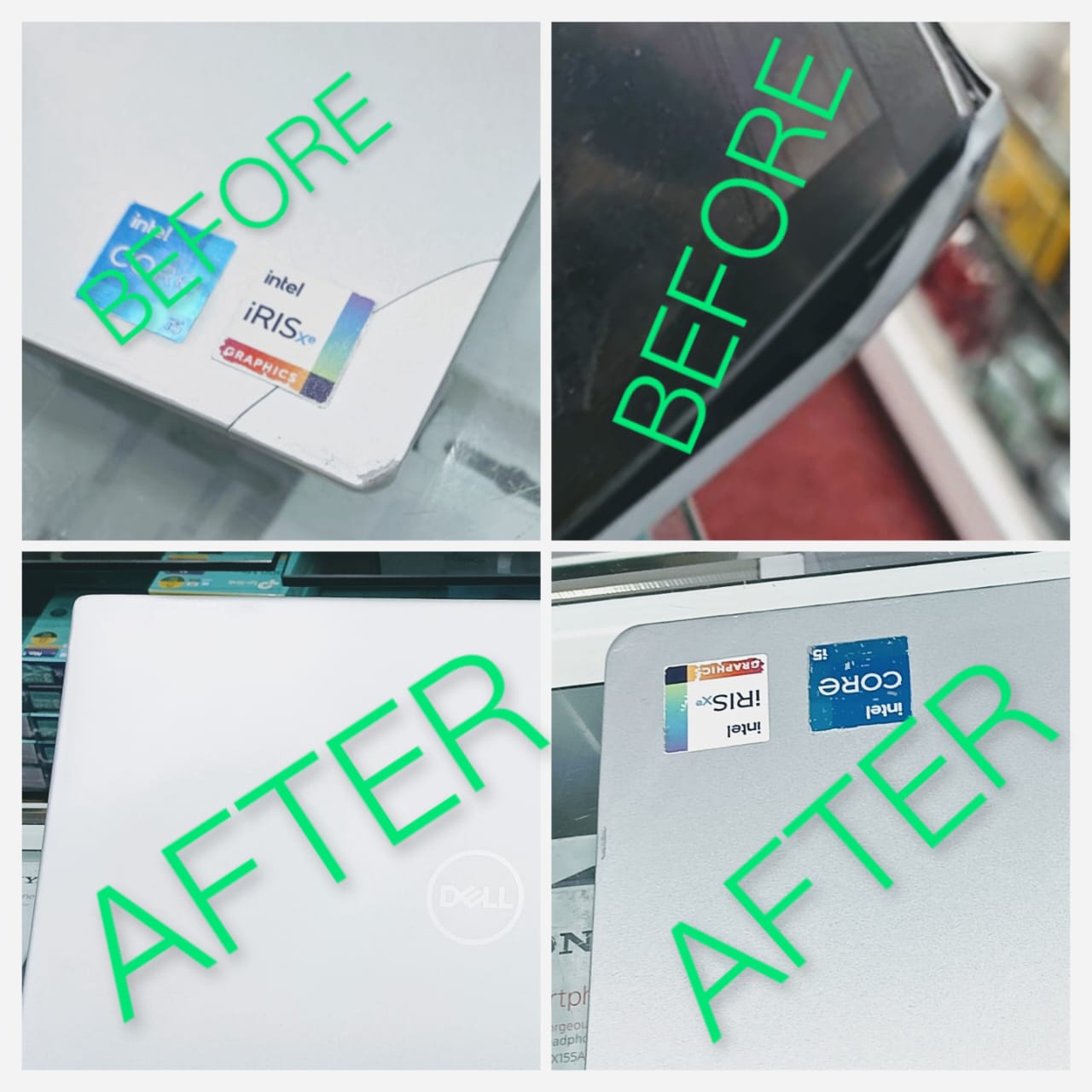
The cost of laptop fabrication in India varies significantly based on the extent of damage, laptop model, brand, and the type of repair required. Generally, fabrication services start from as low as Rs. 499 for basic repairs, such as single-side fabrication, and can go up to Rs. 3000 for high-end or complete body replacements. For instance, single-side fabrication starts at Rs. 499, while two-side fabrication begins at Rs. 799, and screen & hinge fabrication starts at Rs. 999. Complete body and base fabrication typically starts at Rs. 1299.

In Pune, the cost of laptop body repair and fabrication ranges between Rs. 500 and Rs. 2500, depending on the severity of damage, the specific laptop model, and the parts required. Some service providers in Pune offer body damage repair starting at Rs. 499, while others charge between Rs. 999 and Rs. 1800 for fabrication services. For specific brands, HP laptop fabrication starts at Rs. 1200, Dell at Rs. 499 for basic repairs but can go up to Rs. 2800 for full body replacement, and Lenovo fabrication costs range from Rs. 1000 to Rs. 2700.

The average cost for laptop body fabrication across India typically falls between Rs. 850 and Rs. 2850, with some providers offering services as low as Rs. 500 for basic fabrication. However, prices may increase in metropolitan areas like Mumbai or Delhi NCR due to higher operational costs and parts availability. For example, in Mumbai, Lenovo laptop fabrication costs range from Rs. 1200 to Rs. 2700, while in Delhi NCR, the cost is generally lower, ranging from Rs. 1000 to Rs. 2200.

It is important to note that laptop fabrication is considered a low-cost, temporary solution that addresses physical damage but does not resolve underlying software or firmware issues. The final cost may also depend on whether the service includes home visits, warranty, or the use of genuine parts

O my friend — but it is too much for my strength — I sink under the weight of the splendour of these visions! A wonderful serenity has taken possession of my entire soul, like these sweet mornings of spring which I enjoy with my whole heart. I am alone, and feel the charm of existence in this spot, which was created for the bliss of souls like mine.

I am so happy, my dear friend, so absorbed in the exquisite sense of mere tranquil existence, that I neglect my talents. I should be incapable of drawing a single stroke at the present moment; and yet I feel that I never was a greater artist than now.

When, while the lovely valley teems with vapour around me, and the meridian sun strikes the upper surface of the impenetrable foliage of my trees, and but a few stray gleams steal into the inner sanctuary, I throw myself down among the tall grass by the trickling stream; and, as I lie close to the earth, a thousand unknown plants are noticed by me: when I hear the buzz of the little world among the stalks, and grow familiar with the countless indescribable forms of the insects and flies, then I feel the presence of the Almighty, who formed us in his own image, and the breath of that universal love which bears and sustains us, as it floats around us in an eternity of bliss; and then, my friend, when darkness overspreads my eyes, and heaven and earth seem to dwell in my soul and absorb its power, like the form of a beloved mistress, then I often think with longing, Oh, would I could describe these conceptions, could impress upon paper all that is living so full and warm within me